Logging in to Waterfall with Zitadel (After Initial Setup)
This topic explains how existing users who have already completed their initial setup can log in to Waterfall using Zitadel authentication.
Overview
Waterfall now uses Zitadel for secure login and 2-Factor authentication. This means:
• Enhanced security for your account.
• A simple and consistent login experience.
• Self-service password reset - no need to contact support.
Login Process
Follow the steps below each time you log in to Waterfall.
1. Open the Waterfall login page in your browser.
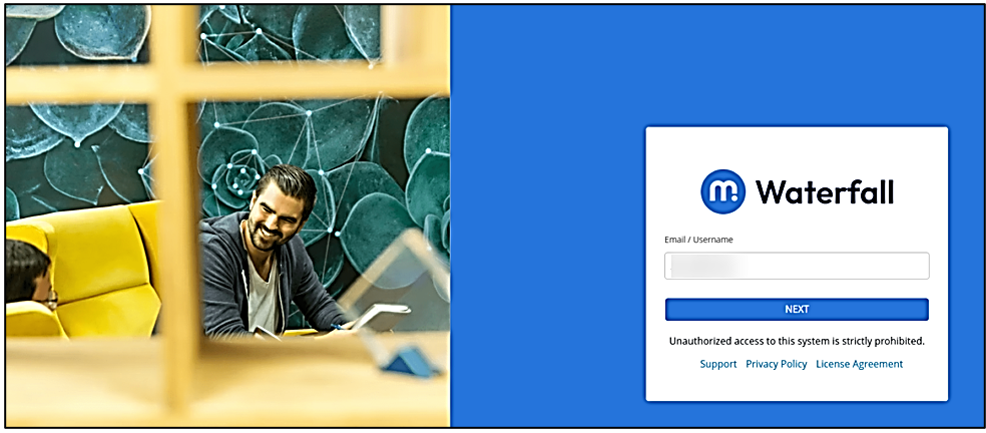
2. On the login screen, enter the username or email address associated with your Waterfall account.
Note: If you experience login issues, try opening Waterfall in a new browser tab or clearing your browser cache.
3. Click NEXT.
You will be redirected to the Zitadel authentication page.
4. Enter your email address as your Login Name.
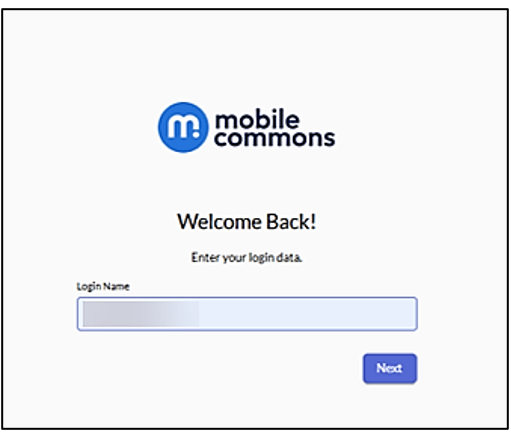
5. Click Next.
6. Enter your password.
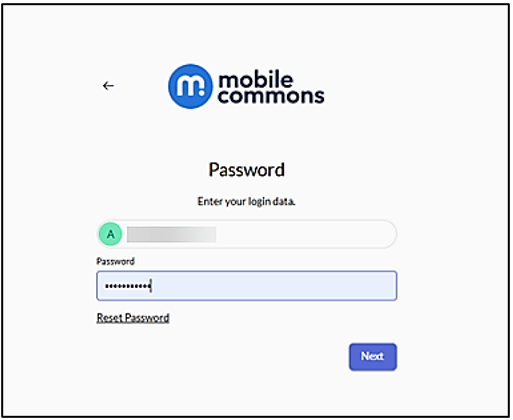
7. Click Next.
Note: To reset your password, click Reset Password at the bottom-left of the page.
8. For 2-Factor verification, enter the verification code from your selected authenticator application.
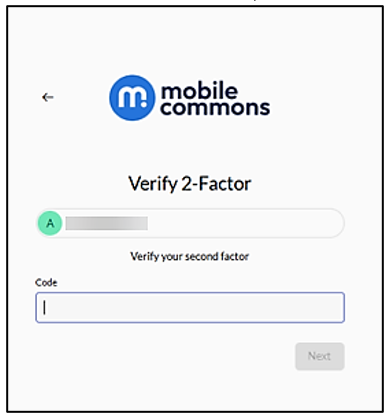
9. Click Next.
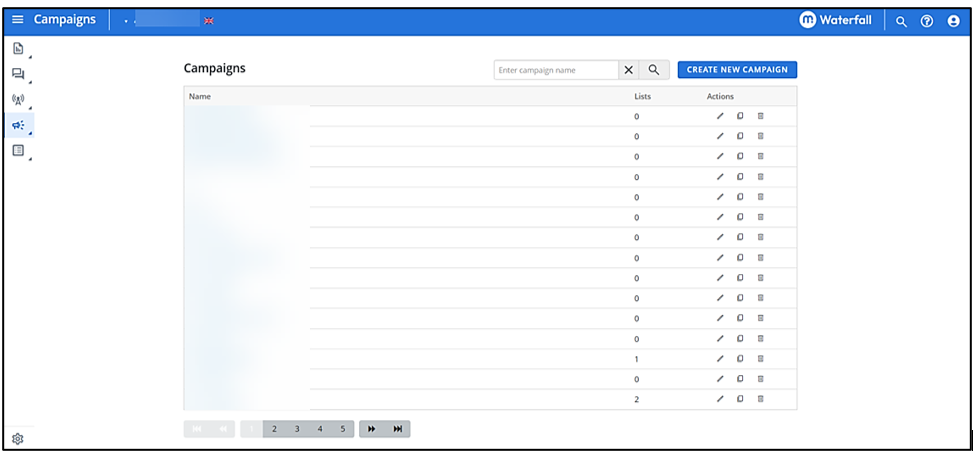
After successful authentication, you will be logged in to Waterfall.
If you're unable to log in via Zitadel authentication, contact the Waterfall Support team.